
Linux

The kernel dashboard you already have but ignore

The pager goes off at 3 AM. Your most critical Kubernetes node is gasping for air. You SSH into the box, but your fancy cloud observability agents are completely frozen. You cannot run top, htop is a distant dream, and your metrics dashboard is just a spinning loading wheel of despair.

What do you do now?

Most people panic. But if you know where to look, your Linux server has a secret, real-time dashboard built right in. It requires zero agents, consumes zero disk space, and is literally generating its data on the fly just for you.

Welcome to the weird, wonderful, and slightly chaotic world of the proc pseudo-filesystem.

The hallucinated filesystem

If you run ls /proc, you will see what looks like a messy drawer full of text files and numbered directories. It is easy to dismiss it as legacy kernel clutter. But here is the bizarre truth about this directory. It does not exist.

Not on your SSD, anyway. The proc filesystem is a pure hallucination managed by the kernel. It exists entirely in RAM. The files inside it have a size of zero bytes right up until the exact microsecond you try to read them. When you run cat /proc/uptime, the kernel intercepts your request, hastily scribbles down the current system state, and hands it back to you.

It is the “everything is a file” Unix philosophy taken to its absolute, absurd logical conclusion. And once you understand how to read it, it becomes an indispensable tool for Cloud Architecture and DevOps engineers.

Gold nuggets for your daily rotation

You do not need to memorize every file in here. Treat it like a hardware store. You only need to know where the hammers and screwdrivers are kept.

The memory health check

Checking /proc/meminfo gives you your memory health at a glance, long before you even try to execute free -h. It is the raw, unfiltered truth about your RAM.

The CPU heartbeat

You can check /proc/loadavg and /proc/stat to understand CPU load and scheduler activity. Load average is like looking at the queue outside a nightclub. It tells you how many processes are waiting to get onto the CPU dance floor.

The network socket inventory

When you are trapped inside a stripped-down Docker container that lacks ss or netstat, /proc/net/tcp and /proc/net/udp are your best friends. They list every active socket connection.

The runtime clock

A quick look at /proc/uptime gives you the system runtime and idle time in a single line. It is incredibly easy to parse for quick uptime checks in your automation scripts.

Peeking inside running applications

If the root of this filesystem is the global state of the machine, the numbered directories are the personal diaries of every running application. Each number corresponds to a Process ID.

Finding the exact command

Sometimes, ps truncates output or is not installed. You can read /proc/<pid>/cmdline to see the exact, literal command that launched the process, null bytes and all.

Reading the environment

Checking /proc/<pid>/environ reveals the environment variables the process started with. It is an absolute goldmine for debugging and a terrifying danger zone for security. Environment variables are like a bouncer who will not let the application start unless its name is on the list, and the application brought the list itself.

Chasing file descriptors

If you ever hit a “too many open files” error, look inside /proc/<pid>/fd/. This directory contains symlinks to every single file, socket, and pipe the application is currently holding onto.

Surviving the cloud native illusion

Containers are, fundamentally, just Linux processes lying to themselves about how much of the world they own. They think they are the only tenant in the building. When you are working with Kubernetes, this pseudo-filesystem bridges the gap between the illusion and the reality.

When eBPF tools or your sidecar agents fail, this interface is your manual override. You can check /proc/<pid>/cgroup to see exactly which control groups are clamping down on your process. If a container keeps getting killed by the Out Of Memory killer, you can watch /proc/<pid>/oom_score to see how angry the kernel is getting at that specific process. The higher the number, the more likely the kernel is going to take it out back and end its misery.

War stories from the trenches

Theoretical knowledge is great, but let us look at how this saves your skin when you are sleep deprived.

The phantom disk filler

Your alerts say the disk is at 100%. You find a massive 50GB application log and delete it. You run df -h again. The disk is still at 100%. What happened? The application is still writing to the deleted file. A file is not truly deleted until the last process closes it. Running lsof or digging through /proc/<pid>/fd will show you the deleted file still held open by the stubborn process. Restart the process, and your 50GB magically returns.

The frozen startup

An application hangs immediately on startup. It is not using CPU, and it is not crashing. What is it waiting for? Inspecting /proc/<pid>/wchan will literally tell you the exact kernel function where the process went to sleep.

The dark side of the dashboard

It is not all sunshine and perfectly formatted data. There are traps here.

First, formatting varies between kernel versions. Writing a strict regular expression to parse these files in a production bash script is a recipe for tears. Always use defensive coding.

Second, the /proc/sys/ directory is not just for looking. It is for touching. This is where kernel tunables live, the underlying mechanism for sysctl. Writing the wrong value here can permanently break your network stack or cause a kernel panic faster than you can hit Ctrl+C. Look, but do not touch unless you have read the documentation twice.

Quick reference sheet

Keep this list handy for your next terminal session.

  • cat /proc/cpuinfo shows your hardware details
  • cat /proc/version gives you the exact kernel and distro info
  • ls -l /proc/<pid>/fd displays live file descriptors
  • cat /proc/net/dev reveals network interface stats
  • echo 3 > /proc/sys/vm/drop_caches frees up pagecache, dentries, and inodes (and makes your database administrator incredibly nervous)

Keep a terminal open to your kernel

This interface is the universal API. It is present when your monitoring tools are broken, when your containers are stripped bare, and when the orchestrator is lying to you.

Next time you SSH into a server or run kubectl exec into a pod, take a second to explore this directory before you reflexively type htop. In the cloud, understanding this in-memory filesystem means you understand exactly what your platform sees. And that is the kind of visibility no vendor can sell you.

Stop killing your pods just to give them more RAM

If your pants feel a little tight after a large Thanksgiving meal, the logical solution is to discreetly unbutton them. You do not typically hire a hitman to assassinate yourself, clone your DNA in a vat, and grow a slightly wider version of yourself just to digest dessert. Yet, for nearly a decade, this is exactly how Kubernetes handled resource management.

When an application slowly consumed all its allocated memory, the standard orchestration response was absolute, violent destruction. We did not give the application more memory. We shot it in the head, deleted its entire existence, and span up a brand new replica with a slightly larger plate. Connections dropped. Warm caches evaporated. State was lost in the digital wind.

Thankfully, the era of the Kubernetes firing squad is drawing to a close. In-place pod resizing has officially graduated to stable General Availability in Kubernetes v1.35, and it changes the fundamental physics of how we manage workloads. We can finally stop burning down the house just to buy a bigger sofa.

Let us explore how this works, why it is practically miraculous, and how to use it without accidentally angering the Linux kernel.

The historical absurdity of pod resource management

Before in-place resizing, if you wanted to change the CPU or memory allocated to a running pod, the workflow was brutally simplistic. You updated your Deployment specification with the new resource requests and limits. The Kubernetes control plane saw the discrepancy between the desired state and the current state. The control plane then instructed the Kubelet to terminate the old pod and create a new one.

Think of taking your car to the mechanic because you need thicker tires. Instead of swapping the tires, the mechanic puts your car into an industrial crusher, hands you an identical car with thicker tires, and tells you to reprogram your radio stations. Sure, the rolling update strategy ensured you had a backup car to drive while the primary one was being crushed, but the specific pod doing the heavy lifting was gone.

For stateless microservices written in Go, this was barely an inconvenience. For a massive Java Virtual Machine holding gigabytes of cached data, or a machine learning inference service handling a traffic spike, a restart was a traumatic event. It meant minutes of downtime, CPU spikes during startup, and a slew of unhappy alerts.

Enter the era of in-place resizing

The magic of Kubernetes v1.35 is that the “resources.requests” and “resources.limits” fields within a pod specification are no longer immutable. You can edit them on the fly.

Under the hood, Kubernetes is finally taking full advantage of Linux control groups (cgroups). A container is basically just a regular Linux process trapped in a highly restrictive administrative box. The kernel has always had the ability to move the walls of this box without killing the process inside. If a container needs more memory, the kernel simply adjusts the cgroup memory limit. It is like a landlord quietly sliding a partition wall outward while you are still sleeping in your bed.

Here is a sanitized example of how you might update a running pod. Notice how we are just applying a patch to an existing, actively running resource.

# We patch the running pod to increase memory limits
# No restarts, no dropped connections, just instant gratification
kubectl patch pod bloated-legacy-api-7b89f5c -p '{"spec":{"containers":[{"name":"main-app","resources":{"limits":{"memory":"4Gi"}}}]}}'

It feels almost illegal the first time you do it. The pod keeps running, the uptime counter keeps ticking, but suddenly the application has breathing room.

The bureaucratic lifecycle of asking for more RAM

Of course, you cannot just demand more resources and expect the universe to instantly comply. The physical node hosting your pod must actually have the spare CPU or memory available. To manage this negotiation, Kubernetes introduces a new field in the pod status called resize.

This field tracks the bureaucratic process of your resource request. It is very much like dealing with the Department of Motor Vehicles, but measured in milliseconds. The statuses are surprisingly descriptive.

First, there is Proposed. This means your request for more resources has been acknowledged. The paperwork is on the desk, but nobody has stamped it yet.

Second, we have “InProgress”. The Kubelet has accepted the request and is currently asking the container runtime (like containerd or CRI-O) to adjust the cgroup limits. The walls are physically moving.

Third, you might see Deferred. This is the orchestrator politely telling you that the node is currently full. Your pod is on a waitlist. As soon as another pod terminates or frees up space, your resize request will be processed. You do not get an error, but you also do not get your RAM. You just wait.

Finally, there is Infeasible. This is Kubernetes looking at you with deep, profound disappointment. You probably asked for 64 Gigabytes of memory on a tiny virtual machine that only has 8 Gigabytes total. The API server essentially stamps your form with a big red “DENIED” and moves on with its life.

Negotiating with stubborn runtimes using resize policies

Not all applications are smart enough to realize they have been gifted more resources. Node.js or Go applications will happily consume newly available CPU cycles without being told. Java applications, on the other hand, are like stubborn mules. If you start a JVM with a maximum heap size of 2 Gigabytes, giving the container 4 Gigabytes of memory will accomplish absolutely nothing. The JVM will stubbornly refuse to look at the new memory until you reboot it.

To handle these varying levels of application intelligence, Kubernetes gives us the resizePolicy array. This allows you to define exactly how the Kubelet should handle changes for each specific resource type.

apiVersion: v1
kind: Pod
metadata:
  name: stubborn-java-beast
spec:
  containers:
  - name: heavy-calculator
    image: corporate-repo/calculator:v4
    resizePolicy:
    - resourceName: cpu
      restartPolicy: RestartNotRequired
    - resourceName: memory
      restartPolicy: RestartContainer
    resources:
      requests:
        memory: "2Gi"
        cpu: "1"
      limits:
        memory: "4Gi"
        cpu: "2"

In this configuration, we are telling Kubernetes a very specific set of rules. If we patch the CPU limits, the Kubelet will adjust the cgroups and leave the container alone (RestartNotRequired). The application will just run faster. However, if we patch the memory limits, the Kubelet knows it must restart the container (RestartContainer) so the application can read the new environment variables and adjust its internal memory management.

The vertical pod autoscaler is your marital therapist

Manually patching pods in the middle of the night is still a terrible way to manage infrastructure. The true power of in-place resizing is unlocked when you pair it with the Vertical Pod Autoscaler.

Historically, the VPA was a bit of a brute. It would watch your pods, realize they needed more memory, and then mercilessly murder them to apply the new sizes. It was effective, but highly destructive.

Now, the VPA features a magical mode called InPlaceOrRecreate. Think of this mode as a highly skilled couples therapist. It sits quietly in the background, observing the relationship between your application and its memory usage. When the application needs more space to grow, the VPA simply slides the walls outward without causing a scene. It only resorts to the nuclear option of recreating the pod if an in-place resize is technically impossible.

apiVersion: autoscaling.k8s.io/v1
kind: VerticalPodAutoscaler
metadata:
  name: smooth-scaling-vpa
spec:
  targetRef:
    apiVersion: apps/v1
    kind: Deployment
    name: frontend-service
  updatePolicy:
    # The magic word that prevents the firing squad
    updateMode: "InPlaceOrRecreate"

With this single setting, your stateful workloads, long-running batch jobs, and memory-hungry APIs can seamlessly adapt to traffic spikes without ever dropping a user request.

The fine print and the rottweiler problem

As with all things in distributed systems, there are rules. You cannot cheat the laws of physics. If a node is completely exhausted of resources, your in-place resize will sit in the Deferred state forever. You still need the Cluster Autoscaler to add fresh physical nodes to your cluster. In-place resizing is a tool for distributing existing wealth, not for printing new money.

Furthermore, we must talk about the danger of scaling down. Increasing memory is a joyous occasion. Reducing memory limits on a running container is like trying to take a juicy steak out of the mouth of a hungry Rottweiler.

The Linux kernel takes memory limits very seriously. If your application is currently using 3 Gigabytes of memory, and you smugly patch the pod to limit it to 2 Gigabytes, the kernel does not politely ask the application to clean up its garbage. The Out Of Memory killer wakes up, grabs an axe, and immediately slaughters your application.

Always scale down memory with extreme caution. It is almost always safer to wait for a natural deployment cycle to reduce memory requests than to try to forcefully shrink a running process.

In the end, in-place pod resizing is not just a neat party trick. It is a fundamental maturation of Kubernetes as an operating system for the cloud. We are no longer treating our workloads like disposable cattle to be slaughtered at the first sign of trouble. We are treating them like slightly demanding house pets. Just give them the bigger bowl of food and let them sleep.

Managing the emotional stability of your Linux server

Thursday, 3:47 AM. Your server is named Nigel. You named him Nigel because deep down, despite the silicon and the circuitry, he feels like a man who organizes his spice rack alphabetically by the Latin name of the plant. But right now, Nigel is not organizing spices. Nigel has decided to stage a full-blown existential rebellion.

The screen is black. The network fan is humming with a tone of passive-aggressive silence. A cursor blinks in the upper-left corner with a rhythm that seems designed specifically to induce migraines. You reboot. Nigel reboots. Nothing changes. The machine is technically “on,” in the same way a teenager staring at the ceiling for six hours is technically “awake.”

At this moment, the question separating the seasoned DevOps engineer from the panicked googler is not “Why me?” but rather: Which personality did Nigel wake up with today?

This is not a technical question. It is a psychological one. Linux does not break at random; it merely changes moods. It has emotional states. And once you learn to read them, troubleshooting becomes less like exorcising a demon and more like coaxing a sulking relative out of the bathroom during Thanksgiving dinner.

The grumpy grandfather who started it all

We lived in a numeric purgatory for years. In an era when “multitasking” sounded like dangerous witchcraft and coffee came only in one flavor (scorched), Linux used a system called SysVinit to manage its temperaments. This system boiled the entire machine’s existence down to a handful of numbers, zero through six, called runlevels.

It was a rigid caste system. Each number was a dial you could turn to decide how much Nigel was willing to participate in society.

Runlevel 0 meant Nigel was checking out completely. Death. Runlevel 6 meant Nigel had decided to reincarnate. Runlevel 1 was Nigel as a hermit monk, holed up in a cave with no network, no friends, just a single shell and a vow of digital silence. Runlevel 5 was Nigel on espresso and antidepressants, graphical interface blazing, ready to party and consume RAM for no apparent reason.

This was functional, in the way a Soviet-era tractor is functional. It was also about as intuitive as a dishwasher manual written in cuneiform. You would tell a junior admin to “boot to runlevel 3,” and they would nod while internally screaming. What does three mean? Is it better than two? Is five twice as good as three? The numbers did not describe anything; they just were, like the arbitrary rules of a board game invented by someone who actively hated you.

And then there was runlevel 4. Runlevel 4 is the appendix of the Linux anatomy. It is vaguely present, historically relevant, but currently just taking up space. It was the “user-definable” switch in your childhood home that either did nothing or controlled the neighbor’s garage door. It sits there, unused, gathering digital dust.

Enter the overly organized therapist

Then came systemd. If SysVinit was a grumpy grandfather, systemd is the high-energy hospital administrator who carries a clipboard and yells at people for walking too slowly. Systemd took one look at those numbered mood dials and was appalled. “Numbers? Seriously? Even my router has a name.”

It replaced the cold digits with actual descriptive words: multi-user.target, graphical.target, rescue.target. It was as if Linux had finally gone to therapy and learned to use its words to express its feelings instead of grunting “runlevel 3” when it really meant “I need personal space, but WiFi would be nice.”

Targets are just runlevels with a humanities degree. They perform the exact same job, defining which services start, whether the GUI is invited to the party, whether networking gets a plus-one, but they do so with the kind of clarity that makes you wonder how we survived the numeric era without setting more server rooms on fire.

A Rosetta Stone for Nigel’s mood swings

Here is the translation guide that your cheat sheet wishes it had. Think of this as the DSM-5 for your server.

  • Runlevel 0 becomes poweroff.target
    Nigel is taking a permanent nap. This is the Irish Goodbye of operating states.
  • Runlevel 1 becomes rescue.target
    Nigel is in intensive care. Only family is allowed to visit (root user). The network is unplugged, the drives might be mounted read-only, and the atmosphere is grim. This is where you go when you have broken something fundamental and need to perform digital surgery.
  • Runlevel 3 becomes multi-user.target
    Nigel is wearing sweatpants but answering emails. This is the gold standard for servers. Networking is up, multiple users can log in, cron jobs are running, but there is no graphical interface to distract anyone. It is a state of pure, joyless productivity.
  • Runlevel 5 becomes graphical.target
    Nigel is in full business casual with a screensaver. He has loaded the window manager, the display server, and probably a wallpaper of a cat. He is ready to interact with a mouse. He is also consuming an extra gigabyte of memory just to render window shadows.
  • Runlevel 6 becomes reboot.target
    Nigel is hitting the reset button on his life.

The command line couch

Knowing Nigel’s mood is useless unless you can change it. You need tools to intervene. These are the therapy techniques you keep in your utility belt.

To eyeball Nigel’s default personality (the one he wakes up with every morning), you ask:

systemctl get-default

This might spit back graphical.target. This means Nigel is a morning person who greets the world with a smile and a heavy user interface. If it says multi-user.target, Nigel is the coffee-before-conversation type.

But sometimes, you need to force a mood change. Let’s say you want to switch Nigel from party mode (graphical) to hermit mode (text-only) without making it permanent. You are essentially putting an extrovert in a quiet room for a breather.

systemctl isolate multi-user.target

The word “isolate” here is perfect. It is not “disable” or “kill.” It is “isolate”. It sounds less like computer administration and more like what happens to the protagonist in the third act of a horror movie involving Antarctic research stations. It tells systemd to stop everything that doesn’t belong in the new target. The GUI vanishes. The silence returns.

To switch back, because sometimes you actually need the pretty buttons:

systemctl isolate graphical.target

And to permanently change Nigel’s baseline disposition, akin to telling a chronically late friend that dinner is at 6:30 when it is really at 7:00:

systemctl set-default multi-user.target

Now Nigel will always wake up in Command Line Interface mode, even after a reboot. You can practically hear the sigh of relief from your CPU as it realizes it no longer has to render pixels.

When Nigel has a real breakdown

Let’s walk through some actual disasters, because theory is just a hobby until production goes down and your boss starts hovering behind your chair breathing through his mouth.

Scenario one: The fugue state

Nigel updated his kernel and now boots to a black screen. He is not dead; he is just confused. You reboot, interrupt the boot loader, and add systemd.unit=rescue.target to the boot parameters.

Nigel wakes up in a safe room. It is a root shell. There is no networking. There is no drama. It is just you and the config files. It is intimate, in a disturbing way. You fix the offending setting, type exec /sbin/init, and Nigel reboots into his normal self, slightly embarrassed about the whole episode.

Scenario two: The toddler on espresso

Nigel’s graphical interface has started crashing like a toddler after too much sugar. Every time you log in, the desktop environment panics and dies. Instead of fighting it, you switch to multi-user.target.

Nigel is now a happy, stable server with no interest in pretty icons. Your users can still SSH in. Your automated jobs still run. Nigel just doesn’t have to perform anymore. It is like taking the toddler out of the Chuck E. Cheese and putting him in a library. The screaming stops immediately.

Scenario three: The bloatware incident

Nigel is a production web server that has inexplicably slowed to a crawl. You dig through the logs and discover that an intern (let’s call him “Not-Fernando”) installed a full desktop environment six months ago because they liked the screensaver.

This is akin to buying a Ferrari to deliver pizza because you like the leather seats. The graphical target is eating resources that your database desperately needs. You set the default to multi-user.target and reboot. Nigel comes back lean, mean, and suddenly has five hundred extra megabytes of RAM to play with. It is like watching someone shed a winter coat in the middle of July.

The mindset shift

Beginners see a black screen and ask, “Why is Nigel broken?” Professionals see a black screen and ask, “Which target is Nigel in, and which services are active?”

This is not just semantics. It is the difference between treating a symptom and diagnosing a disease. When you understand that Linux doesn’t break so much as it changes states, you stop being a victim of circumstance and start being a negotiator. You are not praying to the machine gods; you are simply asking Nigel, “Hey buddy, what mood are you in?” and then coaxing him toward a more productive state.

The panic evaporates because you know the vocabulary. You know that rescue.target is a panic room, multi-user.target is a focused work session, and graphical.target is Nigel trying to impress someone at a party.

Linux targets are not arcane theory reserved for greybeards and certification exams. They are the foundational language of state management. They are how you tell Nigel, “It is okay to be a hermit today,” or “Time to socialize,” or “Let’s check you into therapy real quick.”

Once you internalize this, boot issues stop being terrifying mysteries. They become logical puzzles. Interviews stop being interrogations. They become conversations. You stop sounding like a generic admin reading a forum post and start sounding like someone who knows Nigel personally.

Because you do. Nigel is that fussy, brilliant, occasionally melodramatic friend who just needs the right kind of encouragement. And now you have the exact words to provide it.

127.0.0.1 and its 16 million invisible roommates

Let’s be honest. You’ve typed 127.0.0.1 more times than you’ve called your own mother. We treat it like the sole, heroic occupant of the digital island we call localhost. It’s the only phone number we know by heart, the only doorbell we ever ring.

Well, brace yourself for a revelation that will fundamentally alter your relationship with your machine. 127.0.0.1 is not alone. In fact, it lives in a sprawling, chaotic metropolis with over 16 million other addresses, all of them squatting inside your computer, rent-free.

Ignoring these neighbors condemns you to a life of avoidable port conflicts and flimsy localhost tricks. But give them a chance, and you’ll unlock cleaner dev setups, safer tests, and fewer of those classic “Why is my test API saying hello to the entire office Wi-Fi?” moments of sheer panic.

So buckle up. We’re about to take the scenic tour of the neighborhood that the textbooks conveniently forgot to mention.

Your computer is secretly a megacity

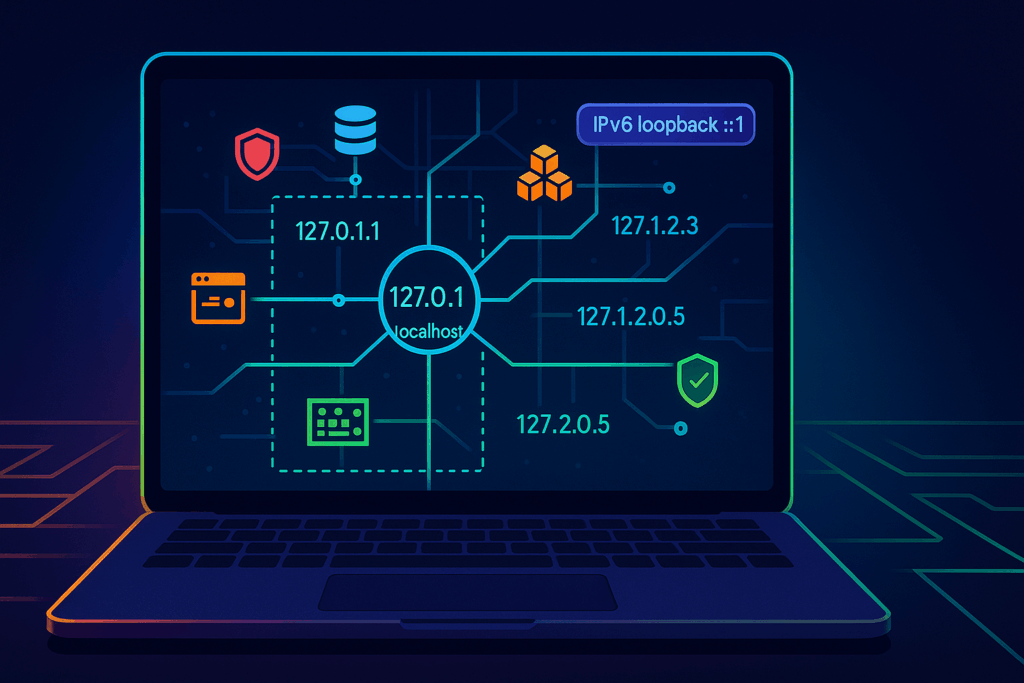
The early architects of the internet, in their infinite wisdom, set aside the entire 127.0.0.0/8 block of addresses for this internal monologue. That’s 16,777,216 unique addresses, from 127.0.0.1 all the way to 127.255.255.254. Every single one of them is designed to do one thing: loop right back to your machine. It’s the ultimate homebody network.

Think of your computer not as a single-family home with one front door, but as a gigantic apartment building with millions of mailboxes. And for years, you’ve been stubbornly sending all your mail to apartment #1.

Most operating systems only bother to introduce you to 127.0.0.1, but the kernel knows the truth. It treats any address in the 127.x.y.z range as a VIP guest with an all-access pass back to itself. This gives you a private, internal playground for wiring up your applications.

A handy rule of thumb? Any address starting with 127 is your friend. 127.0.0.2, 127.10.20.30, even 127.1.1.1, they all lead home.

Everyday magic tricks with your newfound neighbors

Once you realize you have a whole city at your disposal, you can stop playing port Tetris. Here are a few party tricks your localhost never told you it could do.

The art of peaceful coexistence

We’ve all been there. It’s 2 AM, and two of your microservices are having a passive-aggressive standoff over port 8080. They both want it, and neither will budge. You could start juggling ports like a circus performer, or you could give them each their own house.

Assign each service its own loopback address. Now they can both listen on port 8080 without throwing a digital tantrum.

First, give your new addresses some memorable names in your /etc/hosts file (or C:\Windows\System32\drivers\etc\hosts on Windows).

# /etc/hosts

127.0.0.1       localhost
127.0.1.1       auth-service.local
127.0.1.2       inventory-service.local

Now, you can run both services simultaneously.

# Terminal 1: Start the auth service
$ go run auth/main.go --bind 127.0.1.1:8080

# Terminal 2: Start the inventory service
$ python inventory/app.py --host 127.0.1.2 --port 8080

Voilà. http://auth-service.local:8080 and http://inventory-service.local:8080 are now living in perfect harmony. No more port drama.

The safety of an invisible fence

Binding a service to 0.0.0.0 is the developer equivalent of leaving your front door wide open with a neon sign that says, “Come on in, check out my messy code, maybe rifle through my database.” It’s convenient, but it invites the entire network to your private party.

Binding to a 127.x.y.z address, however, is like building an invisible fence. The service is only accessible from within the machine itself. This is your insurance policy against accidentally exposing a development database full of ridiculous test data to the rest of the company.

Advanced sorcery for the brave

Ready to move beyond the basics? Treating the 127 block as a toolkit unlocks some truly powerful patterns.

Taming local TLS

Testing services that require TLS can be a nightmare. With your new loopback addresses, it becomes trivial. You can create a single local Certificate Authority (CA) and issue a certificate with Subject Alternative Names (SANs) for each of your local services.

# /etc/hosts again

127.0.2.1   api-gateway.secure.local
127.0.2.2   user-db.secure.local
127.0.2.3   billing-api.secure.local

Now, api-gateway.secure.local can talk to user-db.secure.local over HTTPS, with valid certificates, all without a single packet leaving your laptop. This is perfect for testing mTLS, SNI, and other scenarios where your client needs to be picky about its connections.

Concurrent tests without the chaos

Running automated acceptance tests that all expect to connect to a database on port 5432 can be a race condition nightmare. By pinning each test runner to its own unique 127 address, you can spin them all up in parallel. Each test gets its own isolated world, and your CI pipeline finishes in a fraction of the time.

The fine print and other oddities

This newfound power comes with a few quirks you should know about. This is the part of the tour where we point out the strange neighbor who mows his lawn at midnight.

  • The container dimension: Inside a Docker container, 127.0.0.1 refers to the container itself, not the host machine. It’s a whole different loopback universe in there. To reach the host from a container, you need to use the special gateway address provided by your platform (like host.docker.internal).
  • The IPv6 minimalist: IPv6 scoffs at IPv4’s 16 million addresses. For loopback, it gives you one: ::1. That’s it. This explains the classic mystery of “it works with 127.0.0.1 but fails with localhost.” Often, localhost resolves to ::1 first, and if your service is only listening on IPv4, it won’t answer the door. The lesson? Be explicit, or make sure your service listens on both.
  • The SSRF menace: If you’re building security filters to prevent Server-Side Request Forgery (SSRF), remember that blocking just 127.0.0.1 is like locking the front door but leaving all the windows open. You must block the entire 127.0.0.0/8 range and ::1.

Your quick start eviction notice for port conflicts

Ready to put this into practice? Here’s a little starter kit you can paste today.

First, add some friendly names to your hosts file.

# Add these to your /etc/hosts file
127.0.10.1  api.dev.local
127.0.10.2  db.dev.local
127.0.10.3  cache.dev.local

Next, on Linux or macOS, you can formally add these as aliases to your loopback interface. This isn’t always necessary for binding, but it’s tidy.

# For Linux
sudo ip addr add 127.0.10.1/8 dev lo
sudo ip addr add 127.0.10.2/8 dev lo
sudo ip addr add 127.0.10.3/8 dev lo

# For macOS
sudo ifconfig lo0 alias 127.0.10.1
sudo ifconfig lo0 alias 127.0.10.2
sudo ifconfig lo0 alias 127.0.10.3

Now, you can bind three different services, all to their standard ports, without a single collision.

# Run your API on its default port
api-server --bind api.dev.local:3000

# Run Postgres on its default port
postgres -D /path/to/data -c listen_addresses=db.dev.local

# Run Redis on its default port
redis-server --bind cache.dev.local

Check that everyone is home and listening.

# Check the API
curl http://api.dev.local:3000/health

# Check the database (requires psql client)
psql -h db.dev.local -U myuser -d mydb -c "SELECT 1"

# Check the cache
redis-cli -h cache.dev.local ping
# Expected output: PONG

Welcome to the neighborhood

Your laptop isn’t a one-address town; it’s a small city with streets you haven’t named and doors you haven’t opened. For too long, you’ve been forcing all your applications to live in a single, crowded, noisy studio apartment at 127.0.0.1. The database is sleeping on the couch, the API server is hogging the bathroom, and the caching service is eating everyone else’s food from the fridge. It’s digital chaos.

Giving each service its own loopback address is like finally moving them into their own apartments in the same building. It’s basic digital hygiene. Suddenly, there’s peace. There’s order. You can visit each one without tripping over the others. You stop being a slumlord for your own processes and become a proper city planner.

So go ahead, break the monogamous, and frankly codependent, relationship you’ve had with 127.0.0.1. Explore the neighborhood. Hand out a few addresses. Let your development environment behave like a well-run, civilized society instead of a digital mosh pit. Your sanity and your services will thank you for it. After all, good fences make good neighbors, even when they’re all living inside your head.

An irreverent tour of Linux disk space and RAM mysteries

Linux feels a lot like living in a loft apartment: the pipes are on display, every clank echoes, and when something leaks, you’re the first to squelch through the puddle. This guide hands you a mop, half a dozen snappy commands that expose where your disk space and memory have wandered off to, plus a couple of click‑friendly detours. Expect prose that winks, occasionally rolls its eyes, and never ever sounds like tax law.

Why checking disk and memory matters

Think of storage and RAM as the pantry and fridge in a shared flat. Ignore them for a week, and you end up with three half‑finished jars of salsa (log files) and leftovers from roommates long gone (orphaned kernels). A five‑minute audit every Friday spares you the frantic sprint for extra space, or worse, the freeze just before a production deploy.

Disk panic survival kit

Get the big picture fast

df is the bird’s‑eye drone shot of your mounted filesystems, everything lines up like contestants at a weigh‑in.

# Exclude temporary filesystems for clarity
$ df -hT -x tmpfs -x devtmpfs

-h prints friendly sizes, -T shows filesystem type, and the two -x flags hide the short‑lived stuff.

Zoom in on space hogs

du is your tape measure. Pair it with a little sort and head for instant gossip about the top offenders in any directory:

# Top 10 fattest directories under /var
$ sudo du -h --max-depth=1 /var 2>/dev/null | sort -hr | head -n 10

If /var/log looks like it skipped leg day and went straight for bulking season, you’ve found the culprit.

Bring in the interactive detective

When scrolling text gets dull, ncdu adds caffeine and colour:

# Install on most Debian‑based distros
$ sudo apt install ncdu

# Start at root (may take a minute)
$ sudo ncdu /

Navigate with the arrow keys, press d to delete, and feel the instant gratification of reclaiming gigabytes, the Marie Kondo of storage.

Visualise block devices

# Tree view of drives, partitions, and mount points
$ lsblk -o NAME,SIZE,FSTYPE,MOUNTPOINT --tree

Handy when that phantom 8 GB USB stick from last week still lurks in /media like an uninvited houseguest.

Memory and swap reality check

Check the ledger

The free command is a quick wallet peek, straightforward, and slightly judgemental:

$ free -h

Focus on the available column; that’s what you can still spend without the kernel reaching for its credit card (a.k.a. swap).

Real‑Time spy cam

# Refresh every two seconds, ordered by RAM gluttons
$ top -o %MEM

Prefer your monitoring colourful and charming? Try htop:

$ sudo apt install htop
$ htop

Use F6 to sort by RES (resident memory) and watch your browser tabs duke it out for supremacy.

Meet RAM’s couch‑surfing cousin

Swap steps in when RAM is full, think of it as sleeping on the living‑room sofa: doable, but slow and slightly undignified.

# Show active swap files or partitions
$ swapon --show

Seeing swap above 20 % during regular use? Either add RAM or conjure an emergency swap file:

$ sudo fallocate -l 2G /swapfile
$ sudo chmod 600 /swapfile
$ sudo mkswap /swapfile
$ sudo swapon /swapfile

Remember to append it to /etc/fstab so it survives a reboot.

Prefer clicking to typing

Yes, there’s a GUI for that. GNOME Disks and KSysGuard both display live graphs and won’t judge your typos. On Ubuntu, you can run:

$ sudo apt install gnome-disk-utility

Launch it from the menu and watch I/O spikes climb like toddlers on a sugar rush.

Quick reference cheat sheet

  1. Show all mounts minus temp stuff
    Command: df -hT -x tmpfs -x devtmpfs
    Memory aid: df = disk fly‑over
  2. Top ten heaviest directories
    Command: du -h –max-depth=1 /path | sort -hr | head
    Memory aid: du = directory weight
  3. Interactive cleanup
    Command: ncdu /
    Memory aid: ncdu = du after espresso
  4. Live RAM counter
    Command: free -h
    Memory aid: free = funds left
  5. Spot memory‑hogging apps
    Command: top -o %MEM
    Memory aid: top = talent show
  6. Swap usage
    Command: swapon –show
    Memory aid: swap on stage

Stick this list on your clipboard; your future self will thank you.

Wrapping up without a bow

You now own the detective kit for disk and memory mysteries, no cosmic metaphors, just straight talk with a wink. Run df -hT right now; if the numbers give you heartburn, take three deep breaths and start paging through ncdu. Storage leaks and RAM gluttons are inevitable, but letting them linger is optional.

Found an even better one‑liner? Drop it in the comments and make the rest of us look lazy. Until then, happy sleuthing, and may your logs stay trim and your swap forever bored.

Free that stuck Linux port and get on with your day

A rogue process squatting on port 8080 is the tech-equivalent of leaving your front-door key in the lock: nothing else gets in or out, and the neighbours start gossiping. Ports are exclusive party venues; one process per port, no exceptions. When an app crashes, restarts awkwardly, or you simply forget it’s still running, it grips that port like a toddler with the last cookie, triggering the dreaded “address already in use” error and freezing your deployment plans.

Below is a brisk, slightly irreverent field guide to evicting those squatters, gracefully when possible, forcefully when they ignore polite knocks, and automatically so you can get on with more interesting problems.

When ports act like gate crashers

Ports are finite. Your Linux box has 65535 of them, but every service worth its salt wants one of the “good seats” (80, 443, 5432…). Let a single zombie process linger, and you’ll be running deployment whack-a-mole all afternoon. Keeping ports free is therefore less superstition and more basic hygiene, like throwing out last night’s takeaway before the office starts to smell.

Spot the culprit

Before brandishing a digital axe, find out who is hogging the socket.

lsof, the bouncer with the clipboard

sudo lsof -Pn -iTCP:8080 -sTCP:LISTEN

lsof prints the PID, the user, and even whether our offender is IPv4 or IPv6. It’s as chatty as the security guard who tells you exactly which cousin tried to crash the wedding.

ss, the Formula 1 mechanic

Modern kernels prefer ss, it’s faster and less creaky than netstat.

sudo ss -lptn sport = :8080

fuser, the debt collector

When subtlety fails, fuser spells out which processes own the file or socket:

sudo fuser -v 8080/tcp

It displays the PID and the user, handy for blaming Dave from QA by name.

Tip: Add the -k flag to fuser to terminate offenders in one swoop, great for scripts, dangerous for fingers-on-keyboard humans.

Gentle persuasion first

A well-behaved process will exit graciously if you offer it a polite SIGTERM (15):

kill -15 3245     # give the app a chance to clean up

Think of it as tapping someone’s shoulder at closing time: “Finish your drink, mate.”

If it doesn’t listen, escalate to SIGINT (2), the Ctrl-C of signals, or SIGHUP (1) to make daemons reload configs without dying.

Bring out the big stick

Sometimes you need the digital equivalent of cutting the mains power. SIGKILL (9) is that guillotine:

kill -9 3245      # immediate, unsentimental termination

No cleanup, no goodbye note, just a corpse on the floor. Databases hate this, log files dislike it, and system-wide supervisors may auto-restart the process, so use sparingly.

One-liners for the impatient

sudo kill -9 $(sudo ss -lptn sport = :8080 | awk 'NR==2{split($NF,a,"pid=");split(a[2],b,",");print b[1]}')

Single line, single breath, done. It’s the Fast & Furious of port freeing, but remember: copy-paste speed correlates strongly with “oops-I-just-killed-production”.

Automate the cleanup

A pocket Bash script

#!/usr/bin/env bash
port=${1:-3000}
pid=$(ss -lptn "sport = :$port" | awk 'NR==2 {split($NF,a,"pid="); split(a[2],b,","); print b[1]}')

if [[ -n $pid ]]; then
  echo "Port $port is busy (PID $pid). Sending SIGTERM."
  kill -15 "$pid"
  sleep 2
  kill -0 "$pid" 2>/dev/null && echo "Still alive; escalating..." && kill -9 "$pid"
else
  echo "Port $port is already free."
fi

Drop it in ~/bin/freeport, mark executable, and call freeport 8080 before every dev run. Fewer keystrokes, fewer swearwords.

systemd, your tireless janitor

Create a watchdog service so the OS restarts your app only when it exits cleanly, not when you manually murder it:

[Unit]
Description=Watchdog for MyApp on 8080

[Service]
ExecStart=/usr/local/bin/myapp
Restart=on-failure
RestartPreventExitStatus=64   # don’t restart if we SIGKILLed

Enable with systemctl enable myapp.service, grab coffee, forget ports ever mattered.

Ansible for the herd

- name: Free port 8080 across dev boxes
  hosts: dev
  become: true
  tasks:
    - name: Terminate offender on 8080
      shell: |
        pid=$(ss -lptn 'sport = :8080' | awk 'NR==2{split($NF,a,"pid=");split(a[2],b,",");print b[1]}')
        [ -n "$pid" ] && kill -15 "$pid" || echo "Nothing to kill"

Run it before each CI deploy; your colleagues will assume you possess sorcery.

A few cautionary tales

  • Containers restart themselves. Kill a process inside Docker, and the orchestrator may spin it right back up. Either stop the container or adjust restart policies.
  • Dependency dominoes. Shooting a backend API can topple every microservice that chats to it. Check systemctl status or your Kubernetes liveness probes before opening fire .
  • Sudo isn’t seasoning. Use it only when the victim process belongs to another user. Over-salting scripts with sudo causes security heartburn.

Wrap-up

Freeing a port isn’t arcane black magic; it’s janitorial work that keeps your development velocity brisk and your ops team sane. Identify the squatter, ask it nicely to leave, evict it if it refuses, and automate the routine so you rarely have to think about it again. Got a port-conflict horror story involving 3 a.m. pager alerts and too much caffeine? Tell me in the comments, schadenfreude is a powerful teacher.

Now shut that laptop lid and actually get on with your day. The ports are free, and so are you.

Linux commands for the pathologically curious

We all get comfortable. We settle into our favorite chair, our favorite IDE, and our little corner of the Linux command line. We master ls, grep, and cd, and we walk around with the quiet confidence of someone who knows their way around. But the terminal isn’t a neat, modern condo; it’s a sprawling, old mansion filled with secret passages, dusty attics, and bizarre little tools left behind by generations of developers.

Most people stick to the main hallways, completely unaware of the weird, wonderful, and handy commands hiding just behind the wallpaper. These aren’t your everyday tools. These are the secret agents, the oddballs, and the unsung heroes of your operating system. Let’s meet a few of them.

The textual anarchists

Some commands don’t just process text; they delight in mangling it in beautiful and chaotic ways.

First, meet rev, the command-line equivalent of a party trick that turns out to be surprisingly useful. It takes whatever you give it and spits it out backward.

echo "desserts" | rev

This, of course, returns stressed. Coincidence? The terminal thinks not. At first glance, you might dismiss it as a tool for a nerdy poetry slam. But the next time you’re faced with a bizarrely reversed data string from some ancient legacy system, you’ll be typing rev and looking like a wizard.

If rev is a neat trick, shuf is its chaotic cousin. This command takes the lines in your file and shuffles them into a completely random order.

# Create a file with a few choices
echo -e "Order Pizza\nDeploy to Production\nTake a Nap" > decisions.txt

# Let the terminal decide your fate
shuf -n 1 decisions.txt

Why would you want to do this? Maybe you need to randomize a playlist, test an algorithm, or run a lottery for who has to fix the next production bug. shuf is an agent of chaos, and sometimes, chaos is exactly what you need.

Then there’s tac, which is cat spelled backward for a very good reason. While the ever-reliable cat shows you a file from top to bottom, tac shows it to you from bottom to top. This might sound trivial, but anyone who has ever tried to read a massive log file will see the genius.

# Instantly see the last 5 errors in a huge log file
tac /var/log/syslog | grep -i "error" | head -n 5

This lets you get straight to the juicy, most recent details without an eternity of scrolling.

The obsessive organizers

After all that chaos, you might need a little order. The terminal has a few neat freaks ready to help.

The nl command is like cat’s older, more sophisticated cousin who insists on numbering everything. It adds formatted line numbers to a file, turning a simple text document into something that looks official.

# Add line numbers to a script
nl backup_script.sh

Now you can professionally refer to “the critical bug on line 73” during your next code review.

But for true organizational bliss, there’s column. This magnificent tool takes messy, delimited text and formats it into beautiful, perfectly aligned columns.

# Let's say you have a file 'users.csv' like this:
# Name,Role,Location
# Alice,Dev,Remote
# Bob,Sysadmin,Office

cat users.csv | column -t -s,

This command transforms your comma-vomit into a table fit for a king. It’s so satisfying it should be prescribed as a form of therapy.

The tireless workers

Next, we have the commands that just do their job, repeatedly and without complaint.

In the entire universe of Linux, there is no command more agreeable than yes. Its sole purpose in life is to output a string over and over until you tell it to stop.

# Automate the confirmation for a script that keeps asking
yes | sudo apt install my-awesome-package

This is the digital equivalent of nodding along until the installation is complete. It is the ultimate tool for the lazy, the efficient, and the slightly tyrannical system administrator.

If yes is the eternal optimist, watch is the eternal observer. This command executes another program periodically, showing its output in real time.

# Monitor the number of established network connections every 2 seconds
watch -n 2 "ss -t | grep ESTAB | wc -l"

It turns your terminal into a live dashboard. It’s the command-line equivalent of binge-watching your system’s health, and it’s just as addictive.

For an even nosier observer, try dstat. It’s the town gossip of your system, an all-in-one tool that reports on everything from CPU stats to disk I/O.

# Get a running commentary of your system's vitals
dstat -tcnmd

This gives you a timestamped report on cpu, network, disk, and memory usage. It’s like top and iostat had a baby and it came out with a Ph.D. in system performance.

The specialized professionals

Finally, we have the specialists, the commands built for one hyper-specific and crucial job.

The look command is a dictionary search on steroids. It performs a lightning-fast search on a sorted file and prints every line that starts with your string.

# Find all words in the dictionary starting with 'compu'
look compu /usr/share/dict/words

It’s the hyper-efficient librarian who finds “computer,” “computation,” and “compulsion” before you’ve even finished your thought.

For more complex relationships, comm acts as a file comparison counselor. It takes two sorted files and tells you which lines are unique to each and which they share.

# File 1: developers.txt (sorted)
# alice
# bob
# charlie

# File 2: admins.txt (sorted)
# alice
# david
# eve

# See who is just a dev, just an admin, or both
comm developers.txt admins.txt

Perfect for figuring out who has access to what, or who is on both teams and thus doing twice the work.

The desire to procrastinate productively is a noble one, and Linux is here to help. Meet at. This command lets you schedule a job to run once at a specific time.

# Schedule a server reboot for 3 AM tomorrow.
# After hitting enter, you type the command(s) and press Ctrl+D.
at 3:00am tomorrow
reboot
^D (Ctrl+D)

Now you can go to sleep and let your past self handle the dirty work. It’s time travel for the command line.

And for the true control freak, there’s chrt. This command manipulates the real-time scheduling priority of a process. In simple terms, you can tell the kernel that your program is a VIP.

# Run a high-priority data processing script
sudo chrt -f 99 ./process_critical_data.sh

This tells the kernel, “Out of the way, peasants! This script is more important than whatever else you were doing.” With great power comes great responsibility, so use it wisely.

Keep digging

So there you have it, a brief tour of the digital freak show lurking inside your Linux system. These commands are the strange souvenirs left behind by generations of programmers, each one a solution to a problem you probably never knew existed. Your terminal is a treasure chest, but it’s one where half the gold coins might just be cleverly painted bottle caps. Each of these tools walks the fine line between a stroke of genius and a cry for help. The fun part isn’t just memorizing them, but that sudden, glorious moment of realization when one of these oddballs becomes the only thing in the world that can save your day.

Podman the secure Daemonless Docker alternative

Podman has emerged as a prominent technology among DevOps professionals, system architects, and infrastructure teams, significantly influencing the way containers are managed and deployed. Podman, standing for “Pod Manager,” introduces a modern, secure, and efficient alternative to traditional container management approaches like Docker. It effectively addresses common challenges related to overhead, security, and scalability, making it a compelling choice for contemporary enterprises.

With the rapid adoption of cloud-native technologies and the widespread embrace of Kubernetes, Podman offers enhanced compatibility and seamless integration within these advanced ecosystems. Its intuitive, user-centric design simplifies workflows, enhances stability, and strengthens overall security, allowing organizations to confidently deploy and manage containers across various environments.

Core differences between Podman and Docker

Daemonless vs Daemon architecture

Docker relies on a centralized daemon, a persistent background service managing containers. The disadvantage here is clear: if this daemon encounters a failure, all containers could simultaneously go down, posing significant operational risks. Podman’s daemonless architecture addresses this problem effectively. Each container is treated as an independent, isolated process, significantly reducing potential points of failure and greatly improving the stability and resilience of containerized applications.

Additionally, Podman simplifies troubleshooting and debugging, as any issues are isolated within individual processes, not impacting an entire network of containers.

Rootless container execution

One notable advantage of Podman is its ability to execute containers without root privileges. Historically, Docker’s default required elevated permissions, increasing the potential risk of security breaches. Podman’s rootless capability enhances security, making it highly suitable for multi-user environments and regulated industries such as finance, healthcare, or government, where compliance with stringent security standards is critical.

This feature significantly simplifies audits, easing administrative efforts and substantially minimizing the potential for security breaches.

Performance and resource efficiency

Podman is designed to optimize resource efficiency. Unlike Docker’s continuously running daemon, Podman utilizes resources only during active container use. This targeted approach makes Podman particularly advantageous for edge computing scenarios, smaller servers, or continuous integration and delivery (CI/CD) pipelines, directly translating into cost savings and improved system performance.

Moreover, Podman supports organizations’ sustainability objectives by reducing unnecessary energy usage, contributing to environmentally conscious IT practices.

Flexible networking with CNI

Podman employs the Container Network Interface (CNI), a standard extensively used in Kubernetes deployments. While CNI might initially require more configuration effort than Docker’s built-in networking, its flexibility significantly eases the transition to Kubernetes-driven environments. This adaptability makes Podman highly valuable for organizations planning to migrate or expand their container orchestration strategies.

Compatibility and seamless transition from Docker

A key advantage of Podman is its robust compatibility with Docker images and command-line tools. Transitioning from Docker to Podman is typically straightforward, requiring minimal adjustments. This compatibility allows DevOps teams to retain familiar workflows and command structures, ensuring minimal disruption during migration.

Moreover, Podman fully supports Dockerfiles, providing a smooth transition path. Here’s a straightforward example demonstrating Dockerfile compatibility with Podman:

FROM alpine:latest

RUN apk update && apk add --no-cache curl

CMD ["curl", "--version"]

Building and running this container in Podman mirrors the Docker experience:

podman build -t myimage .
podman run myimage

This seamless compatibility underscores Podman’s commitment to a user-centric approach, prioritizing ease of transition and ongoing operational productivity.

Enhanced security capabilities

Podman offers additional built-in security enhancements beyond rootless execution. By integrating standard Linux security mechanisms such as SELinux, AppArmor, and seccomp profiles, Podman ensures robust container isolation, safeguarding against common vulnerabilities and exploits. This advanced security model simplifies compliance with rigorous security standards and significantly reduces the complexity of maintaining secure container environments.

These security capabilities also streamline security audits, enabling teams to identify and mitigate potential vulnerabilities proactively and efficiently.

Looking ahead with Podman

As container technology evolves rapidly, staying updated with innovative solutions like Podman is essential for DevOps and system architecture professionals. Podman addresses critical challenges associated with Docker, offering improved security, enhanced performance, and seamless Kubernetes compatibility.

Embracing Podman positions your organization strategically, equipping teams with superior tools for managing container workloads securely and efficiently. In the dynamic landscape of modern DevOps, adopting forward-thinking technologies such as Podman is key to sustained operational success and long-term growth.

Podman is more than an alternative—it’s the next logical step in the evolution of container technology, bringing greater reliability, security, and efficiency to your organization’s operations.

How to check if a folder is used by services on Linux

You know that feeling when you’re spring cleaning your Linux system and spot that mysterious folder lurking around forever? Your finger hovers over the delete key, but something makes you pause. Smart move! Before removing any folder, wouldn’t it be nice to know if any services are actively using it? It’s like checking if someone’s sitting in a chair before moving it. Today, I’ll show you how to do that, and I promise to keep it simple and fun.

Why should you care?

You see, in the world of DevOps and SysOps, understanding which services are using your folders is becoming increasingly important. It’s like being a detective in your own system – you need to know what’s happening behind the scenes to avoid accidentally breaking things. Think of it as checking if the room is empty before turning off the lights!

Meet your two best friends lsof and fuser

Let me introduce you to two powerful tools that will help you become this system detective: lsof and fuser. They’re like X-ray glasses for your Linux system, letting you see invisible connections between processes and files.

The lsof command as your first tool

lsof stands for “list open files” (pretty straightforward, right?). Here’s how you can use it:

lsof +D /path/to/your/folder

This command is like asking, “Hey, who’s using stuff in this folder?” The system will then show you a list of all processes that are accessing files in that directory. It’s that simple!

Let’s break down what you’ll see:

  • COMMAND: The name of the program using the folder
  • PID: A unique number identifying the process (like its ID card)
  • USER: Who’s running the process
  • FD: File descriptor (don’t worry too much about this one)
  • TYPE: Type of file
  • DEVICE: Device numbers
  • SIZE/OFF: Size of the file
  • NODE: Inode number (system’s way of tracking files)
  • NAME: Path to the file

The fuser command as your second tool

Now, let’s meet fuser. It’s like lsof’s cousin, but with a different approach:

fuser -v /path/to/your/folder

This command shows you which processes are using the folder but in a more concise way. It’s perfect when you want a quick overview without too many details.

Examples

Let’s say you have a folder called /var/www/html and you want to check if your web server is using it:

lsof +D /var/www/html

You might see something like:

COMMAND  PID     USER   FD   TYPE DEVICE SIZE/OFF NODE NAME
apache2  1234    www-data  3r  REG  252,0   12345 67890 /var/www/html/index.html

This tells you that Apache is reading files from that folder, good to know before making any changes!

Pro tips and best practices

  • Always check before deleting When in doubt, it’s better to check twice than to break something once. It’s like looking both ways before crossing the street!
  • Watch out for performance The lsof +D command checks all subfolders too, which can be slow for large directories. For quicker checks of just the folder itself, you can use:
lsof +d /path/to/folder
  • Combine commands for better insights You can pipe these commands with grep for more specific searches:
lsof +D /path/to/folder | grep service_name

Troubleshooting common scenarios

Sometimes you might run these commands and get no output. Don’t panic! This usually means no processes are currently using the folder. However, remember that:

  • Some processes might open and close files quickly
  • You might need sudo privileges to see everything
  • System processes might be using files in ways that aren’t immediately visible

Conclusion

Understanding which services are using your folders is crucial in modern DevOps and SysOps environments. With lsof and fuser, you have powerful tools at your disposal to make informed decisions about your system’s folders.

Remember, the key is to always check before making changes. It’s better to spend a minute checking than an hour fixing it! These tools are your friends in maintaining a healthy and stable Linux system.

Quick reference

# Check folder usage with lsof
lsof +D /path/to/folder

# Quick check with fuser
fuser -v /path/to/folder

# Check specific service
lsof +D /path/to/folder | grep service_name

# Check folder without recursion
lsof +d /path/to/folder

The commands we’ve explored today are just the beginning of your journey into better Linux system management. As you become more comfortable with these tools, you’ll find yourself naturally integrating them into your daily DevOps and SysOps routines. They’ll become an essential part of your system maintenance toolkit, helping you make informed decisions and prevent those dreaded “Oops, I shouldn’t have deleted that” moments.

Being cautious with system modifications isn’t about being afraid to make changes,  it’s about making changes confidently because you understand what you’re working with. Whether you’re managing a single server or orchestrating a complex cloud infrastructure, these simple yet powerful commands will help you maintain system stability and peace of mind.

Keep exploring, keep learning, and most importantly, keep your Linux systems running smoothly. The more you practice these techniques, the more natural they’ll become. And remember, in the world of system administration, a minute of checking can save hours of troubleshooting!

How to Change the Index HTML in Nginx: A Beginner’s Expedition

In this guide, we’ll delve into the process of changing the index HTML file in Nginx. The index HTML file is the default file served when a user visits a website. By altering this file, you can customize your website’s content and appearance. As we walk through the steps to modify the Nginx index HTML in Kubernetes with configmap, we’ll first gain an understanding of the Nginx configuration file and its location. Then, we’ll learn how to locate and modify the index HTML file. Let’s dive in!

Understanding the Nginx Configuration File.

The Nginx configuration file is where you can specify various settings and directives for your server. This file is crucial for the operation of your Nginx server. It’s typically located at /etc/nginx/nginx.conf, but the location can vary depending on your specific Nginx setup.

Locating the Index HTML File

The index HTML file is the default file that Nginx serves when a user accesses a website. It’s usually located in the root directory of the website. To find the location of the index HTML file, check the Nginx configuration file for the root directive. This directive specifies the root directory of the website. Once you’ve located the root directory, the index HTML file is typically named index.html or index.htm. It’s important to note that the location of the index HTML file may vary depending on the specific Nginx configuration.

server {
    listen 80;
    server_name example.com;
    root /var/www/html;
    
    location / {
        try_files $uri $uri/ =404;
    }
}

if the root directive is not immediately visible within the main nginx.conf file, it’s often because it resides in a separate configuration file. These files are typically found in the conf.d or sites-enabled directories. Such a structure allows for cleaner and more organized management of different websites or domains hosted on a single server. By separating them, Nginx can apply specific settings to each site, including the location of its index HTML file.

user www-data;
worker_processes auto;
pid /run/nginx.pid;
include /etc/nginx/modules-enabled/*.conf;

events {
    worker_connections 768;
    # multi_accept on;
}

http {
    # Basic Settings
    sendfile on;
    tcp_nopush on;
    tcp_nodelay on;
    keepalive_timeout 65;
    types_hash_max_size 2048;
    include /etc/nginx/mime.types;
    default_type application/octet-stream;

    # SSL Settings
    ssl_protocols TLSv1 TLSv1.1 TLSv1.2; # Dropping SSLv3, ref: POODLE
    ssl_prefer_server_ciphers on;

    # Logging Settings
    access_log /var/log/nginx/access.log;
    error_log /var/log/nginx/error.log;

    # Gzip Settings
    gzip on;
    gzip_disable "msie6";

    # Virtual Host Configs
    include /etc/nginx/conf.d/*.conf;
    include /etc/nginx/sites-enabled/*;
}

Editing the Nginx Configuration File

To edit the Nginx configuration file, follow these steps:

  1. Open the terminal or command prompt.
  2. Navigate to the directory where the Nginx configuration file is located.
  3. Use a text editor to open the configuration file (e.g., sudo nano nginx.conf).
  4. Make the necessary changes to the file, such as modifying the server block or adding new location blocks.
  5. Save the changes and exit the text editor.
  6. Test the configuration file for syntax errors by running sudo nginx -t.
  7. If there are no errors, reload the Nginx service to apply the changes (e.g., sudo systemctl reload nginx).

Remember to back up the configuration file before making any changes, and double-check the syntax to avoid any errors. If you encounter any issues, refer to the Nginx documentation or seek assistance from the Nginx community.

Modifying the Index HTML File

To modify the index HTML file in Nginx, follow these steps:

  1. Locate the index HTML file in your Nginx configuration directory.
  2. Open the index HTML file in a text editor.
  3. Make the necessary changes to the HTML code.
  4. Save the file and exit the text editor

Common Questions:

  1. Where can I find the configuration file for Nginx?
    • Look for the Nginx configuration file at /etc/nginx/nginx.conf.
  2. Is it possible to relocate the index HTML file within Nginx?
    • Indeed, by altering the Nginx configuration file, you can shift the index HTML file’s location.
  3. What steps should I follow to modify the Nginx configuration file?
    • Utilize a text editor like nano or vim to make edits to the Nginx configuration file.
  4. Where does Nginx usually store the index HTML file by default?
    • Nginx generally keeps the index HTML file in the /usr/share/nginx/html directory.
  5. Am I able to edit the index HTML file directly?
    • Absolutely, you have the ability to update the index HTML file with a text editor.
  6. Should I restart Nginx to apply new configurations?
    • Restarting Nginx is required to activate any new configuration changes.

The Practicality of Mastery in Nginx Configuration

Understanding the nginx.conf file isn’t just academic—it’s a vital skill for real-world applications. Whether you’re deploying a simple blog or a complex microservices architecture with Kubernetes, the need to tweak nginx.conf surfaces frequently. For instance, when securing communications with SSL/TLS, you’ll dive into this file to point Nginx to your certificates. Or perhaps you’re optimizing performance; here too, nginx.conf holds the keys to tweaking file caching and client connection limits.

It’s in scenarios like setting up a reverse proxy or handling multiple domains where mastering nginx.conf moves from being useful to being essential. By mastering the location and editing of the index HTML file, you empower yourself to respond dynamically to the needs of your site and your audience. So, take the helm, customize confidently, and remember that each change is a step towards a more tailored and efficient web experience.